
A little less paperwork
Scan. Fill. Sign.
Share.
Get on with life.
Turn paper or an existing PDF into a finished document. All from your iPhone or iPad. No printer. No new account.
PocketSign Pro subscription required for core features.
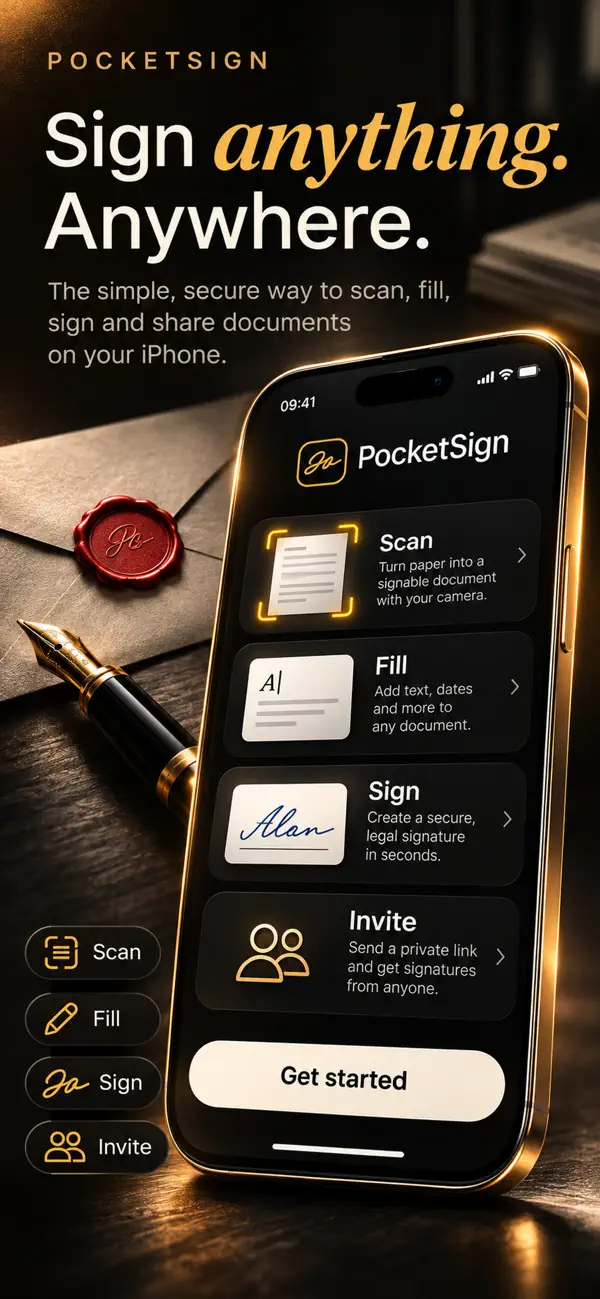
Signed. Ready to send.
A clean PDF. Your original kept.
From to-do to done
Four steps. One less thing
on your mind.
For the everyday form, the work document, and the paperwork between you and your day.
- 01
Scan or open
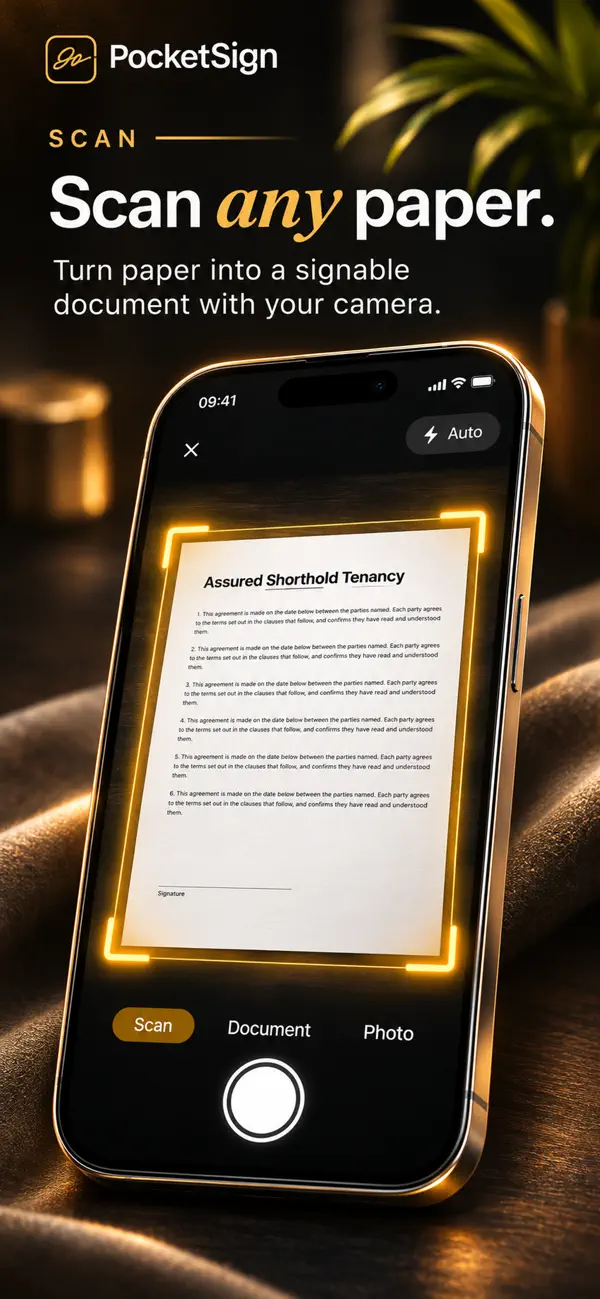
Scan a stack of paper into one PDF, or open a file from Files, iCloud Drive or another app.
Paper or PDF. Your choice.
- 02
Fill it in
Tap to add text, dates and checkboxes. Drag and resize each entry until everything sits just right.
A place for every detail.
- 03
Make your mark
Draw, type or import a signature. Add your initials, or save your signature for next time.
Your signature, your way.
- 04
Send it back
Save or share a clean, flattened PDF with your entries in place. Your original file stays unchanged.
Done, without the printer.
A small app. A complete toolkit.
Everything your
paperwork needs.
From the first scan to the final copy, keep the whole job in one calm place.
Paper, meet PDF.
Automatic edge detection, cropping and filters make a tidy scan. Combine multiple pages and put them in the right order.
Already have a PDF? Open it from Files, iCloud Drive or another app—even if it’s password-protected.
More than a signature.
A signature that feels like you
Draw, type or import your signature. Use it once, or keep it in a Face ID-protected vault for next time.
Every page in its place
Reorder, rotate, duplicate or delete pages. Add text, initials and stamps, with undo and redo when you need them.
Room for a little markup
Underline the important part or jot a note with the pen, highlighter and eraser. Apple Pencil is supported on iPad.
Save, share or print a flattened PDF, while preserving the original.
When it needs another signature
Your document.
Their signature.
No extra hurdles.
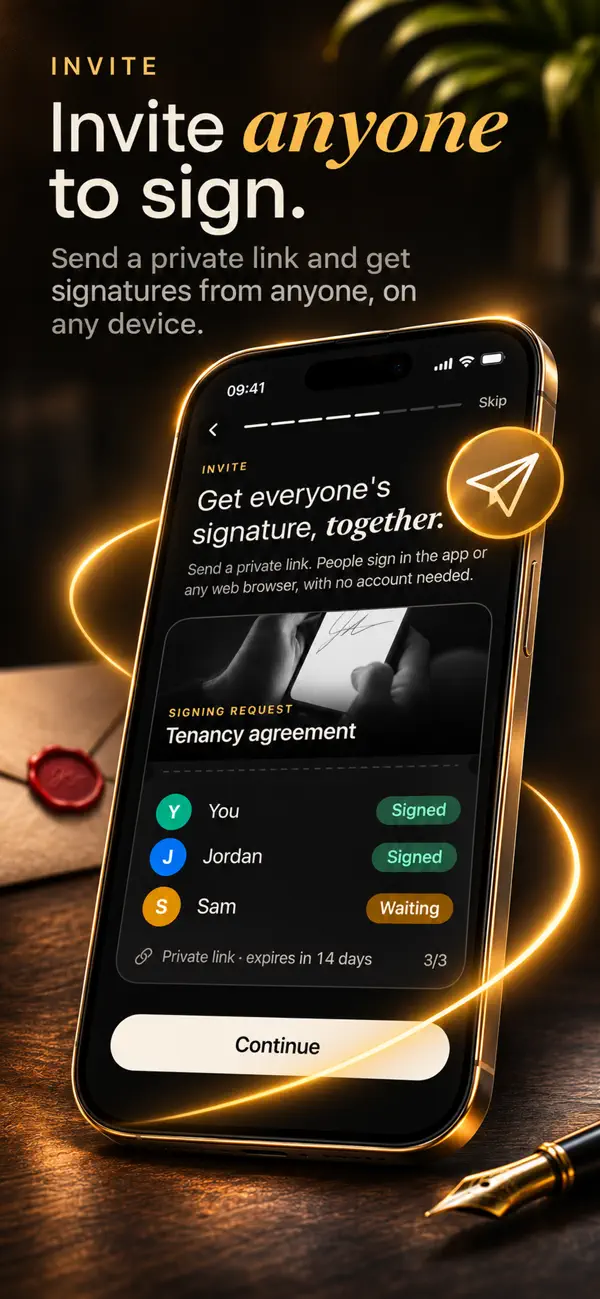
Send a private signing request with PocketSign Pro. The people you invite never need a subscription.
- 1
Choose who signs
Invite one person or several. Set the order and assign the right fields to each signer.
- 2
Share a private link
Recipients can sign in PocketSign or a browser. No account or subscription needed.
- 3
Follow it through
See signing progress, then download the completed PDF when everyone is finished.
Online signing is optional. A file uploads only when you request signatures and confirm. Share private links only with the intended people.
Private, on purpose
Your paperwork.
Your say.
Signing your own PDF and inviting someone else to sign are different. Here’s exactly where your document goes.
Your own documents
On your device.
Opening, scanning, filling, signing and exporting your own PDFs happen on your iPhone or iPad. These actions don’t upload your documents.
Signing with others
Only when you choose.
Requesting signatures uploads the selected PDF and signing details only after you confirm. Choose automatic deletion after 7, 30 or 90 days following completion, cancellation or expiration.
On-device by default. Online signing by choice.
More about privacyPocketSign Pro
Your complete
paperwork toolkit.
Pro is required to unlock scanning, filling, signing, unlimited documents and online signing requests. Pick a monthly or yearly subscription in the app.
- Scanning, filling and signing
- Unlimited documents
- Online signing requests
- PDF markup and page organization
Just invited to sign? You never need an account or a Pro subscription.
Monthly
A month-to-month subscription.
Yearly
3-day trial for eligible new subscribers.
Current prices are shown in the app.
The yearly trial is only for eligible new subscribers. After the trial, the yearly subscription renews at the price shown before purchase unless canceled.
Subscriptions are billed to your Apple ID and renew automatically unless canceled at least 24 hours before the current period ends. Manage or cancel in your App Store account settings.
Which devices can I use?
PocketSign is available for iPhone and iPad. It requires iOS 18 or iPadOS 18 or later. Apple Pencil is supported for markup on iPad.
Do I need to create an account?
No. You can use PocketSign without making an account. People you invite to sign can also use their private signing link without an account, either in the app or in a web browser.
Do I need a subscription?
PocketSign Pro is required to unlock scanning, filling, signing, unlimited documents and online signing requests. Monthly and yearly plans are available, with prices shown in the app. A 3-day yearly trial is available only to eligible new subscribers and renews afterward unless canceled. Invitees never need a subscription.
Do my documents leave my device?
Not when you scan, fill, sign or export your own PDFs. If you choose to request signatures from other people, the selected PDF and signing details are uploaded after you confirm. You can choose automatic deletion after 7, 30 or 90 days following completion, cancellation or expiration, or delete the online copy sooner.
Will PocketSign change my original PDF?
No. PocketSign preserves the original and exports a separate, flattened PDF with the text, signatures and other entries you added in place. You can save, share or print the finished copy.
Can someone sign without downloading the app?
Yes. The recipient of a private signing request can open the link and sign in a web browser. They do not need the app, an account or a subscription. Creating and sending the request requires PocketSign Pro in the app.
Can I edit or upload a PDF on this website?
No. This website explains PocketSign. To scan, fill or sign your own PDFs, download the iPhone or iPad app. Browser signing is available only through a private signing-request link sent to a recipient.
Less paperwork.
More room for your day.
Open a document. Add what’s needed. Send it back.
PocketSign keeps it simple.
For iPhone and iPad · Core features require PocketSign Pro